


Run Qualtrics Surveys on MTurk using TurkPrime
Running Qualtrics surveys on TurkPrime streamlines several major pain-points researchers using MTurk have dealt with:
- Researchers can setup a dynamic secret code so that each Worker receives a unique code upon completing the study. This eliminates the possibility of workers sharing codes.
- Researchers can choose to auto approve and reject workers based on their submission of the dynamic secret code.
- Researchers can automatically capture information such as the MTurk WorkerID, HitID, and AssignmentID of each person who completes their survey. This allows you to match workers with their data.
Below is a basic description of these features and how to use them.
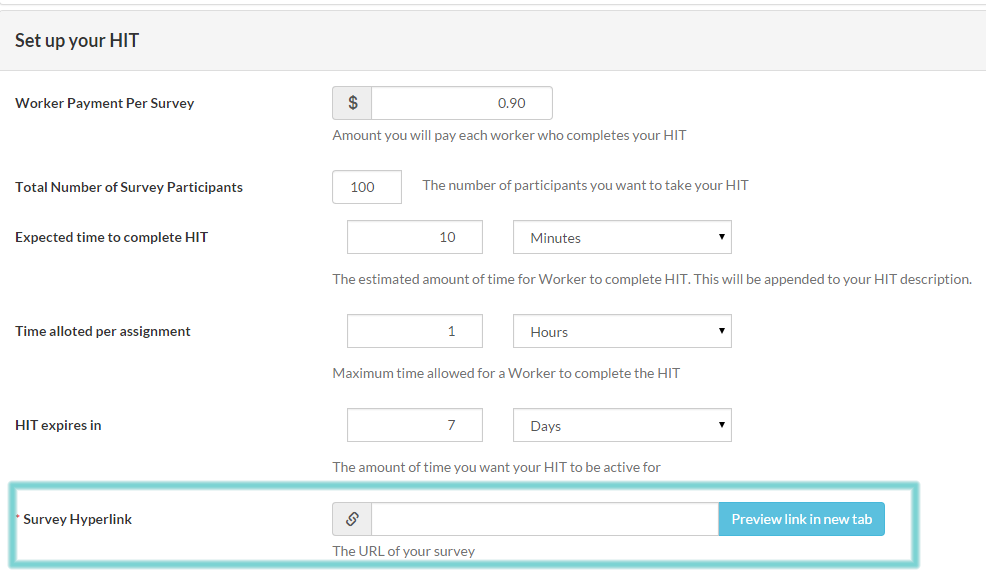
The TurkPrime Design Survey Form is intuitive and similar to the MTurk Requester HIT Design form except that it adds many useful features like exclude Workers, target specific workers and much more. Below is a portion of the TurkPrime Design Survey form where you specify the Survey Hyperlink.
Qualtrics Surveys With Workers Specific Secret Codes
Now, you can also run Qualtrics surveys with TurkPrime Worker Specific Secret Codes. That means each worker will be assigned a unique secret code they need to submit to demonstrate they completed your Qualtrics survey. Unique codes eliminate the possibility that workers might share completion codes and submit your HIT without completing the survey.
The Dynamic Secret Completion Code can be easily integrated into other non-Qualtrics systems as well. TurkPrime calculates the Secret Code based on query string parameters that are added to the url of your survey. These parameters are named:
abc
As long as your survey platform ensures that the query string values are preserved in the url when a participant reaches the last page of your survey that contains the TurkPrime iframe, then a completion code should get displayed.
This can be achieved by capturing the parameters within your study. Nearly all platforms support this functionality. Please contact us if you have questions.
Furthermore, you have the option to manually approve each assignment or have TurkPrime auto-approve the assignment based on the secret code. (If for any reason, a worker is rejected in error by either you or the system, you can reverse the rejection within TurkPrime).
Setup in TurkPrime is very simple. and involves a few steps to the instructions at the end of your Qualtrics study as follows:
Setup for Qualtrics
- Create or Edit a Survey
- Click on "Survey Options"

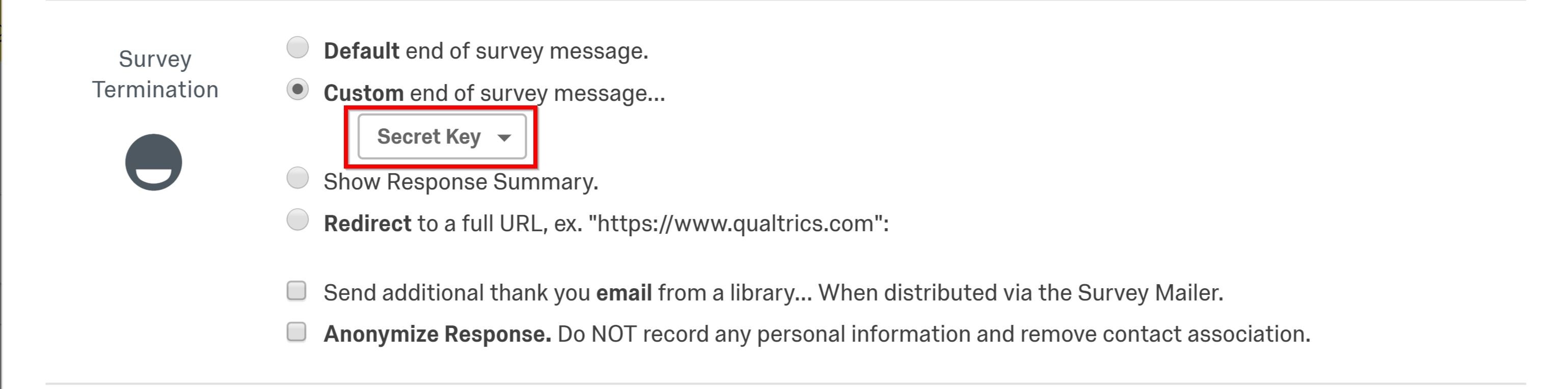
- In the Survey Termination Section: Click on Custom end of survey message...
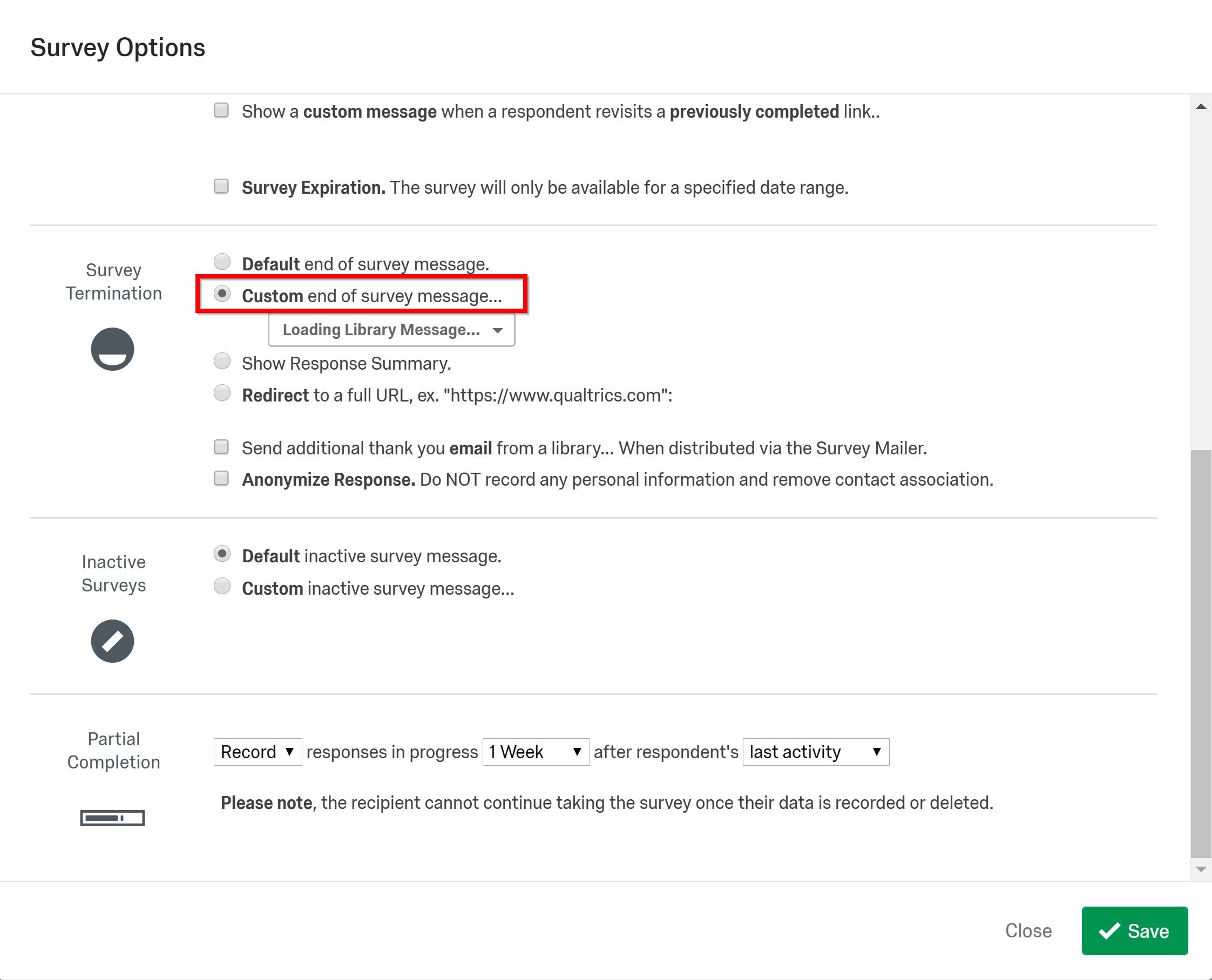
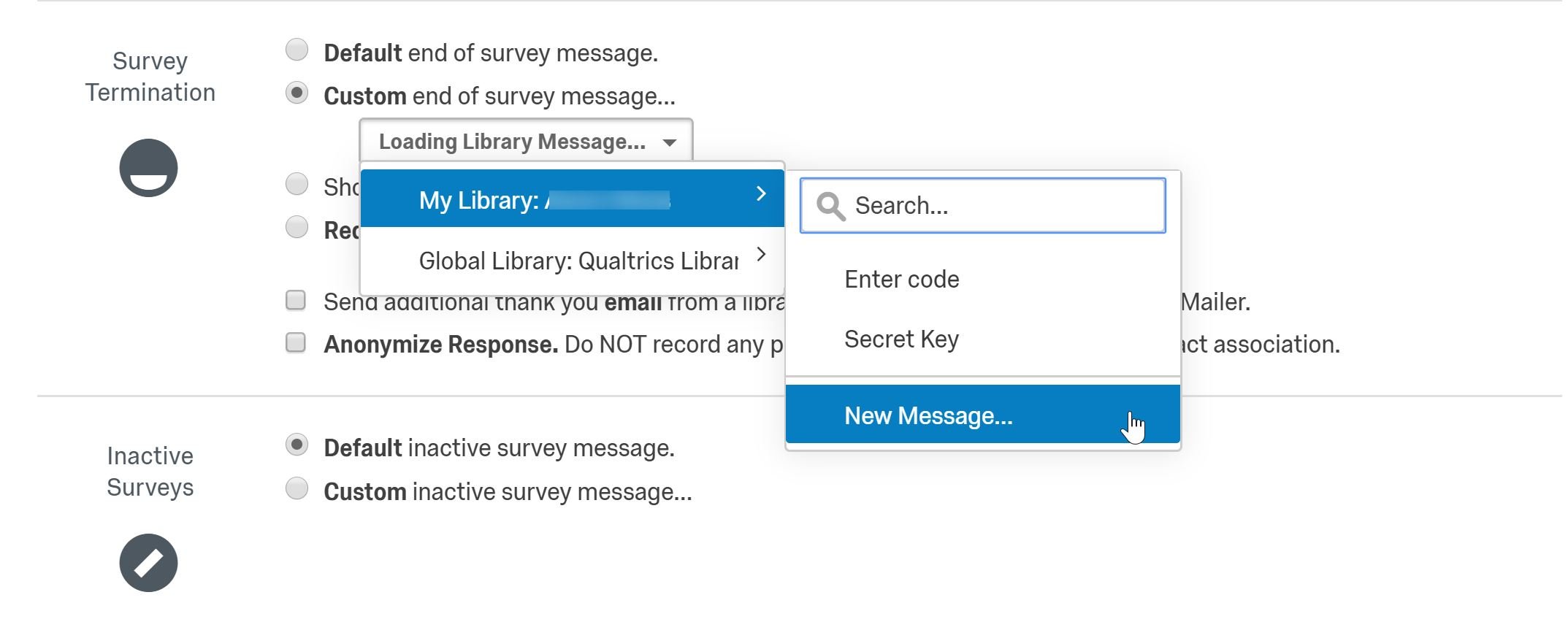
- If you have previously created a Secret Key, select the key and you are done. If not, click New Message.
- On the following page, enter "Secret Key" into the Description field.
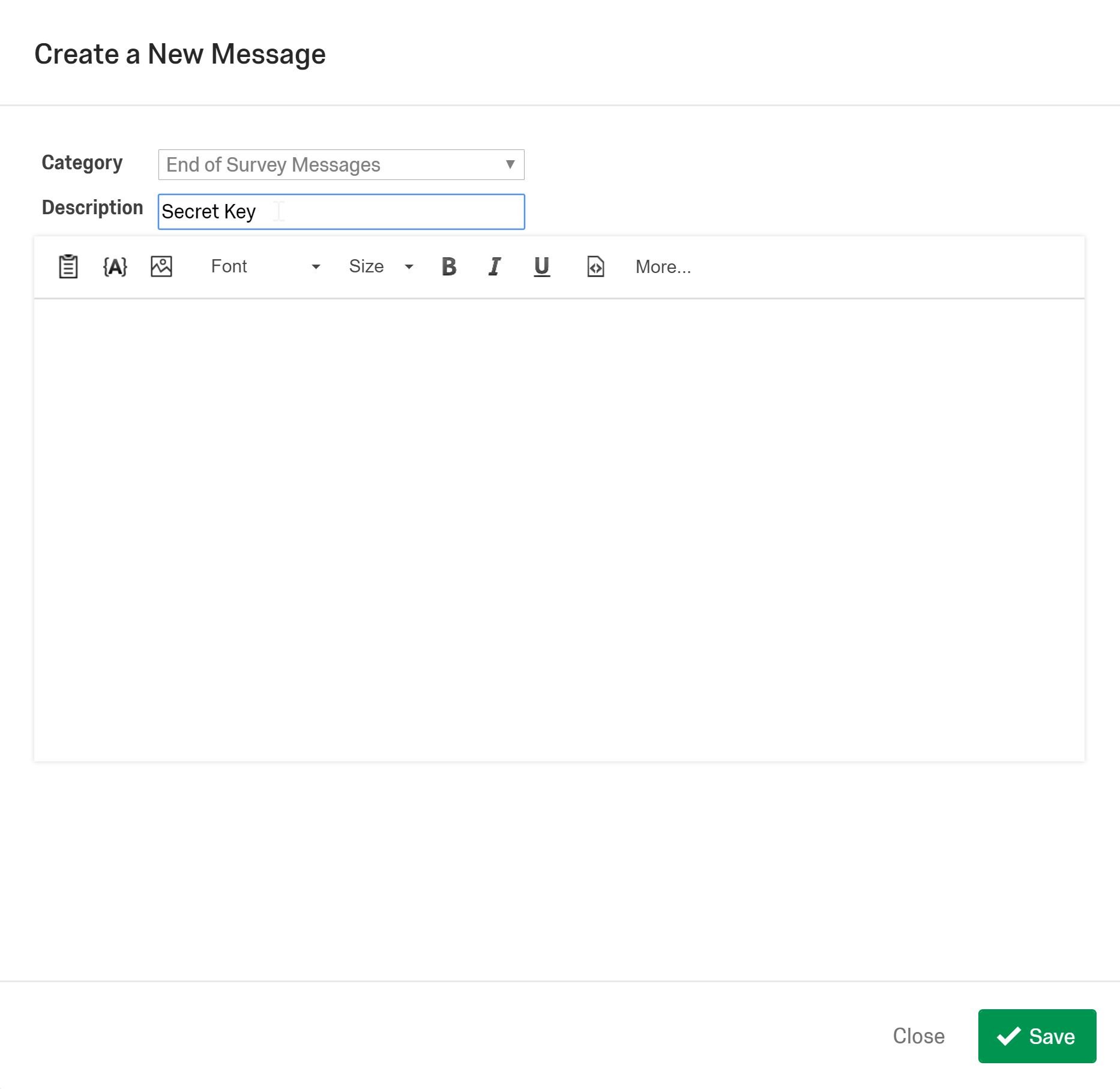
- Next, click the "Source Code" button. When you click this button, the text box will turn into a source code box where you can paste the code for the dynamic approval code to work.
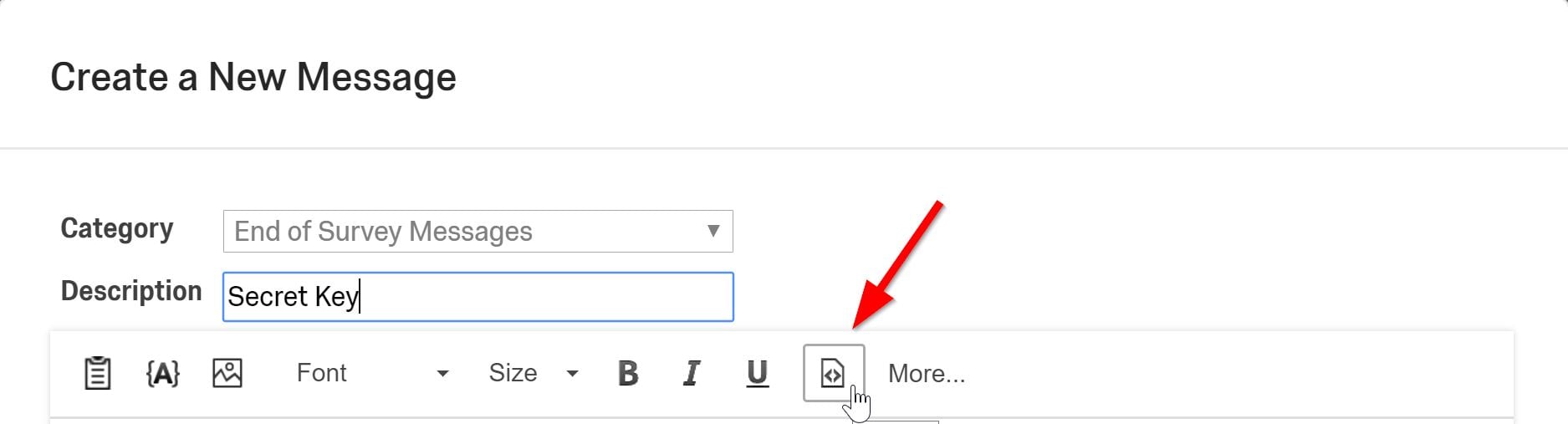
- Once you have the source code box open, paste the code below into the box exactly as it appears.
<iframe src='https://www.TurkPrime.com/TakeLaunchedSurvey/DynamicKey' width='100%' height='200'></iframe>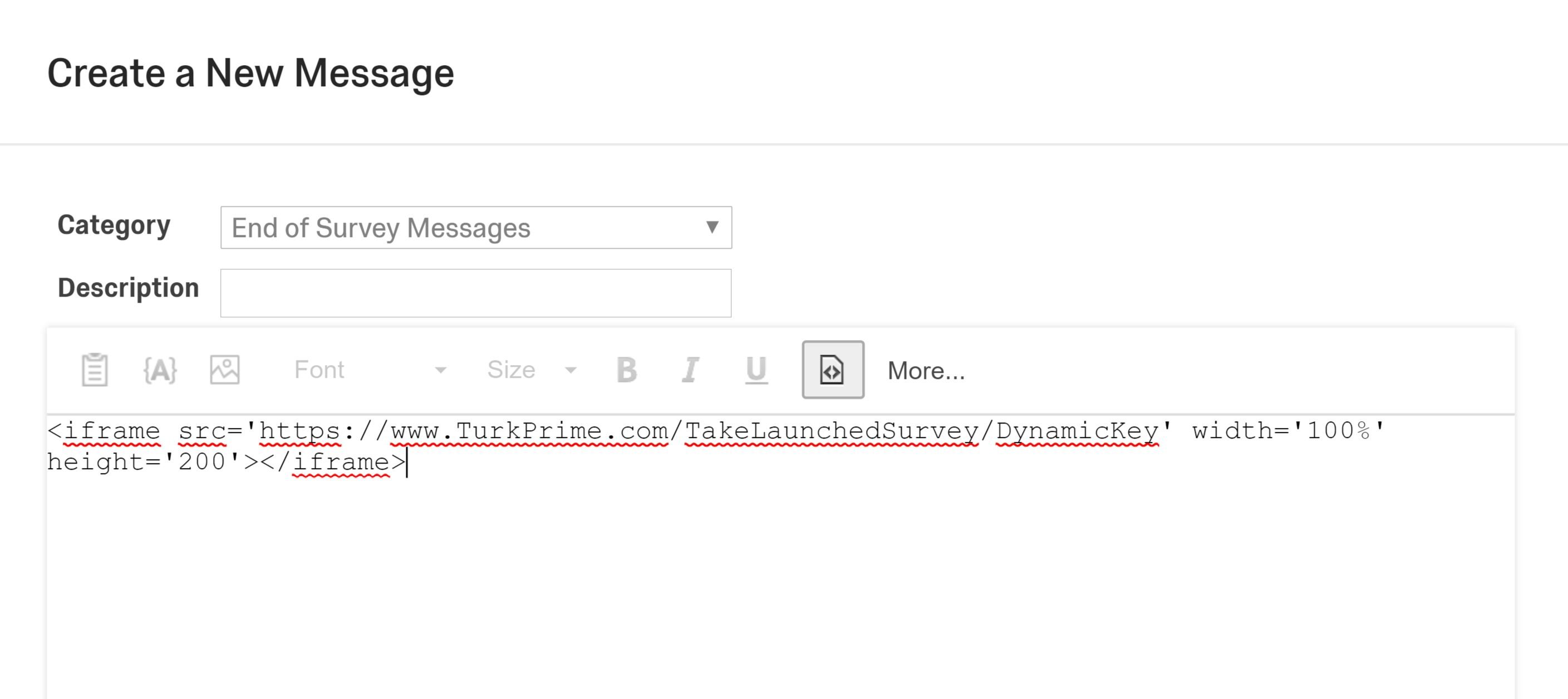
- Finally, click "Save." The Secret Key you just created should be selected as the end of survey message.
To test your dynamic code, please follow the instructions at the bottom of this article.
Passing Mechanical Turk WorkerId and AssignmentId to Qualtrics
TurkPrime automatically adds the following query string parameters to your URL so you can take advantage of them in your data collection. The parameters are: workerId , assignmentId , and hitId .
workerId-The worker's MTurk idassignmentId-A unique id that Amazon generates for a worker taking your HIThitId-The id of your HIT
This eliminates the need to add JavaScript code snippets into your surveys or other solutions.that Requesters have developed. It just is added to your URL automatically.
See here for how to integrate these parameters into your Qualtrics survey.
For TurkPrime integration with Google Forms see here.